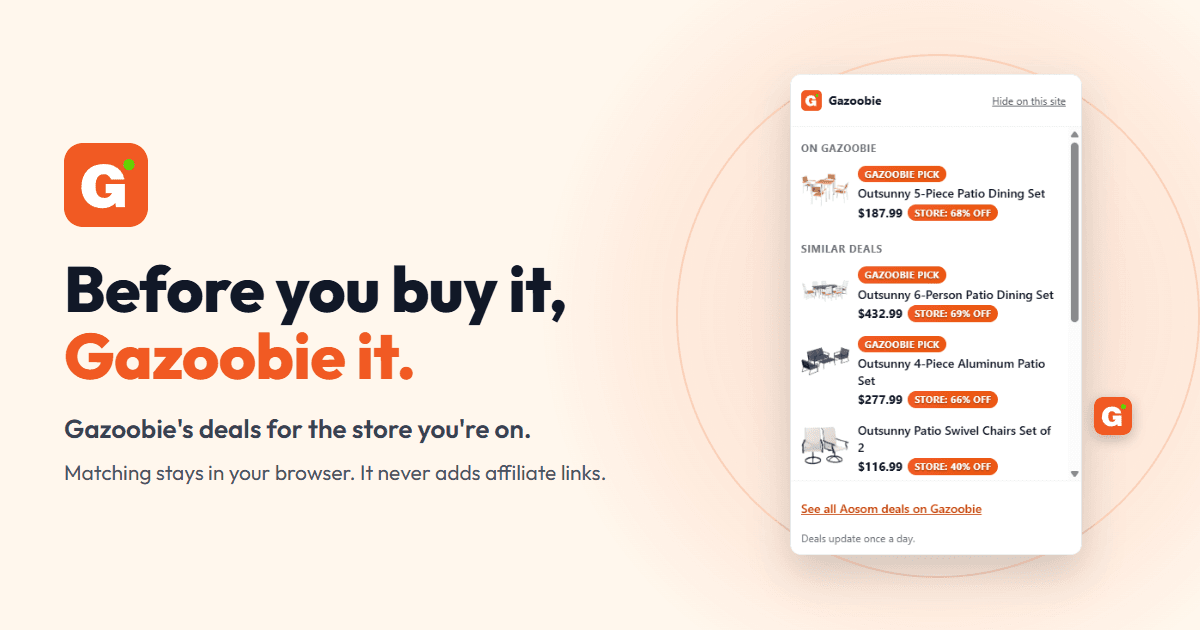
The Gazoobie Chrome extension puts our deal list on the store you are already shopping. On a store we cover, a small orange G sits on the right edge of the page. Click it, and you see the deals we list for that store.
It is free, and it went live on the Chrome Web Store on October 1, 2026. That day it covered 136 stores, from Target and Nike to PetSmart and Aosom.
Add Gazoobie to Chrome
Free. It never adds affiliate links, and it never sends us the pages you visit.
Add Gazoobie to ChromeWhat does the extension show on a store page?
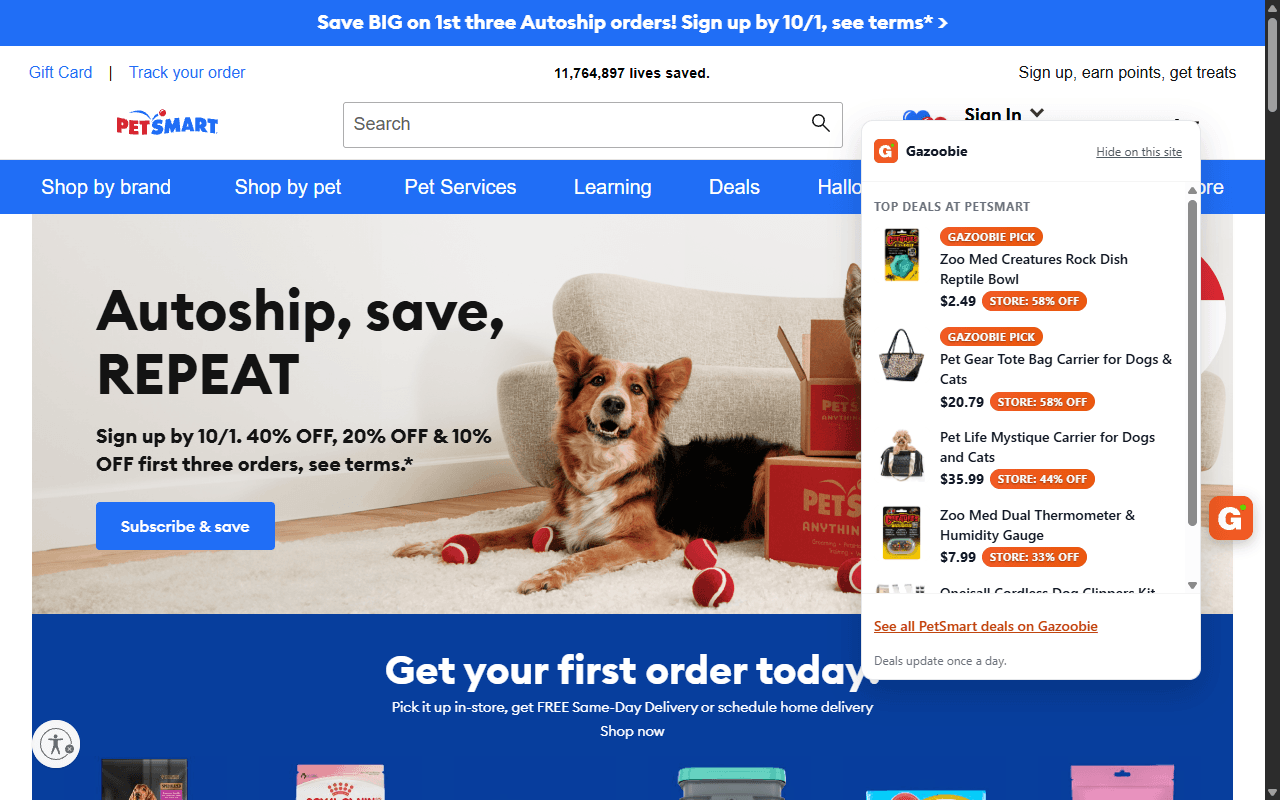
It shows up to 5 of that store's top deals from our list, with each price and discount. A link at the bottom opens every deal we list for the store.
Each discount badge starts with the word "Store", as in "Store: 58% off". That is on purpose. The percentage is the store's own claim, measured from its own reference price, and we label it as theirs.
A "Gazoobie Pick" tag means the deal scored 78 or more out of 100 on our deal score. It does not prove the price beats every other shop. Our method page says what the score checks and what it does not.
The list updates once a day. Prices come from each store's own feed and can change during the day, so the store page always has the final price.
What happens on a product page?
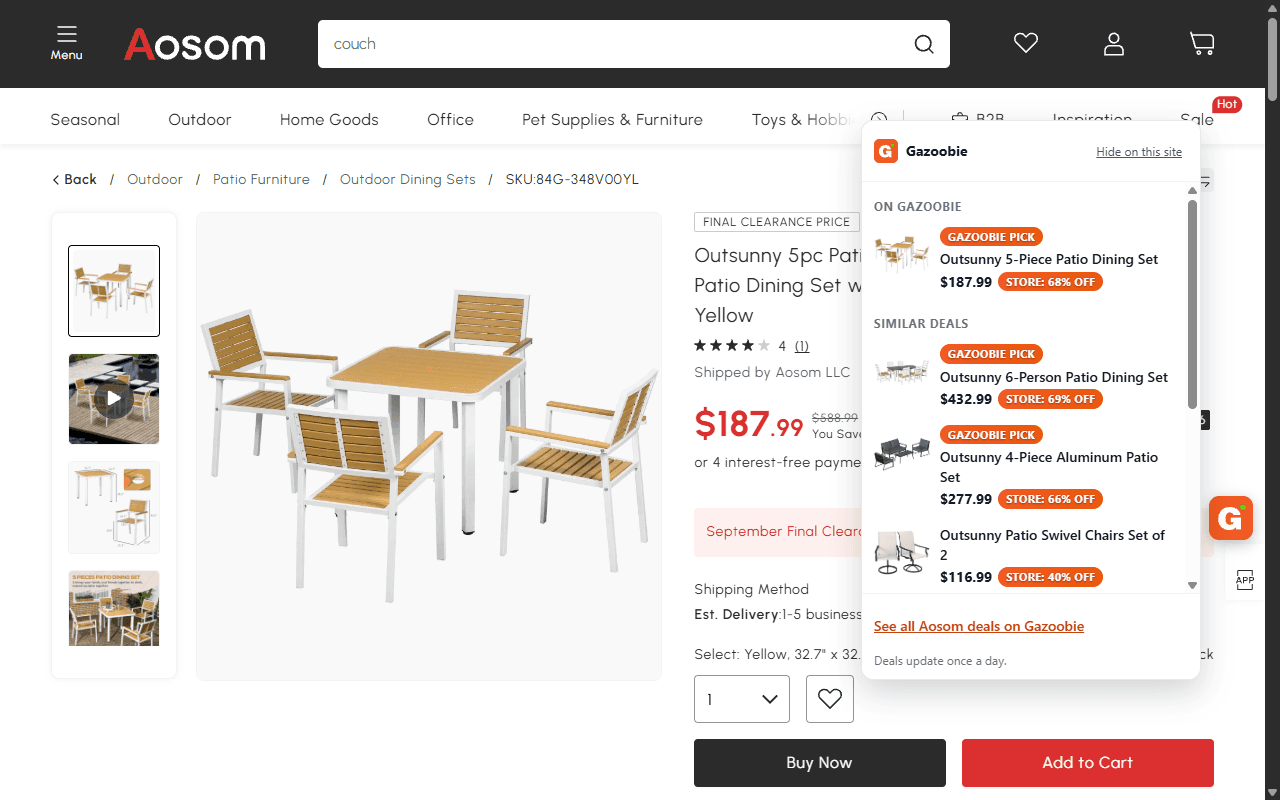
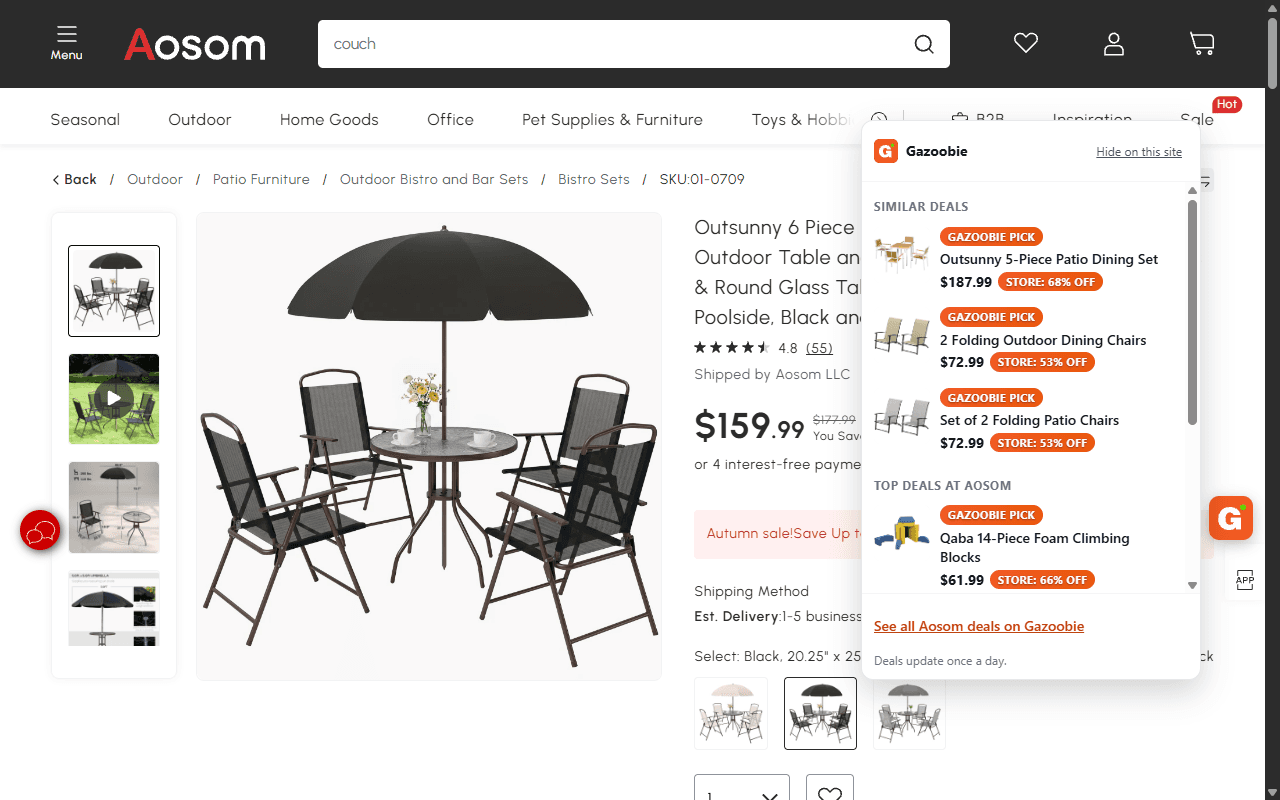
On a product page, it looks for that exact product on our list first, then for up to 3 similar deals, then lists the store's top deals.
When the product is on our list, it sits at the top under "On Gazoobie". An exact match needs the store's own product address in our deal feed, and on October 1 we had that for 2 stores, Aosom and Rexing. At the other stores you will see similar deals instead.
Similar deals are matched on the words in the product's name. They are labeled "Similar" because they are not the same item, and a similar deal can come from another store.
What does the Gazoobie extension never do?
It never sends us, or anyone else, the pages you visit. Once a day it downloads our deal list from gazoobie.com, and the matching happens inside your browser against that list. Our privacy policy says the same.
Nor does it add affiliate links or set cookies on store pages. Every link in the menu opens the deal's page on gazoobie.com. If you click through from there and buy, the store may pay us a commission, the same as for any deal on our site. Our affiliate disclosure explains that.
We built it that way on purpose. Because it adds no links and sets no cookies on store pages, the extension cannot change who gets credit for a sale.
Coupon codes are not its job either. It does not test them or apply them at checkout. If you want a tool that does, our Honey and Rakuten comparison covers that job.
How do I add it to Chrome?
Open the Gazoobie listing on the Chrome Web Store, click "Add to Chrome", then click "Add extension".
Chrome will warn that the extension can read and change data on the stores it lists. It needs that permission to put the button on those pages and read the product name. Nothing it reads leaves your browser.
To keep the G in your toolbar, click the puzzle-piece icon next to the address bar and pin Gazoobie. If the button gets in your way on one store, choose "Hide on this site" in the menu. The toolbar button still works there.
Add Gazoobie to Chrome
Free. It never adds affiliate links, and it never sends us the pages you visit.
Add Gazoobie to ChromeQuestions people ask
Is the Gazoobie extension free?
Yes. It costs nothing to add or use, and there is no account to make.
Does it work on my phone?
No. Chrome on Android and iPhone does not run extensions, so it works in Chrome on a computer. On a phone, gazoobie.com has the same deals.
Does Gazoobie see what I shop for?
No. The extension matches deals inside your browser. The only request it makes to us is the daily download of the deal list, the same as loading a page on our site.
Why is there no Gazoobie button on a store I use?
The button shows only on stores we cover, and only when we list deals for that store that day. If you chose "Hide on this site" there before, the button stays hidden, and the toolbar button still opens the menu.
How do I remove it?
Click the puzzle-piece icon next to the address bar, open the menu beside Gazoobie, and choose "Remove from Chrome". Removing it also deletes the deal list and the hidden-store setting it saved in your browser.